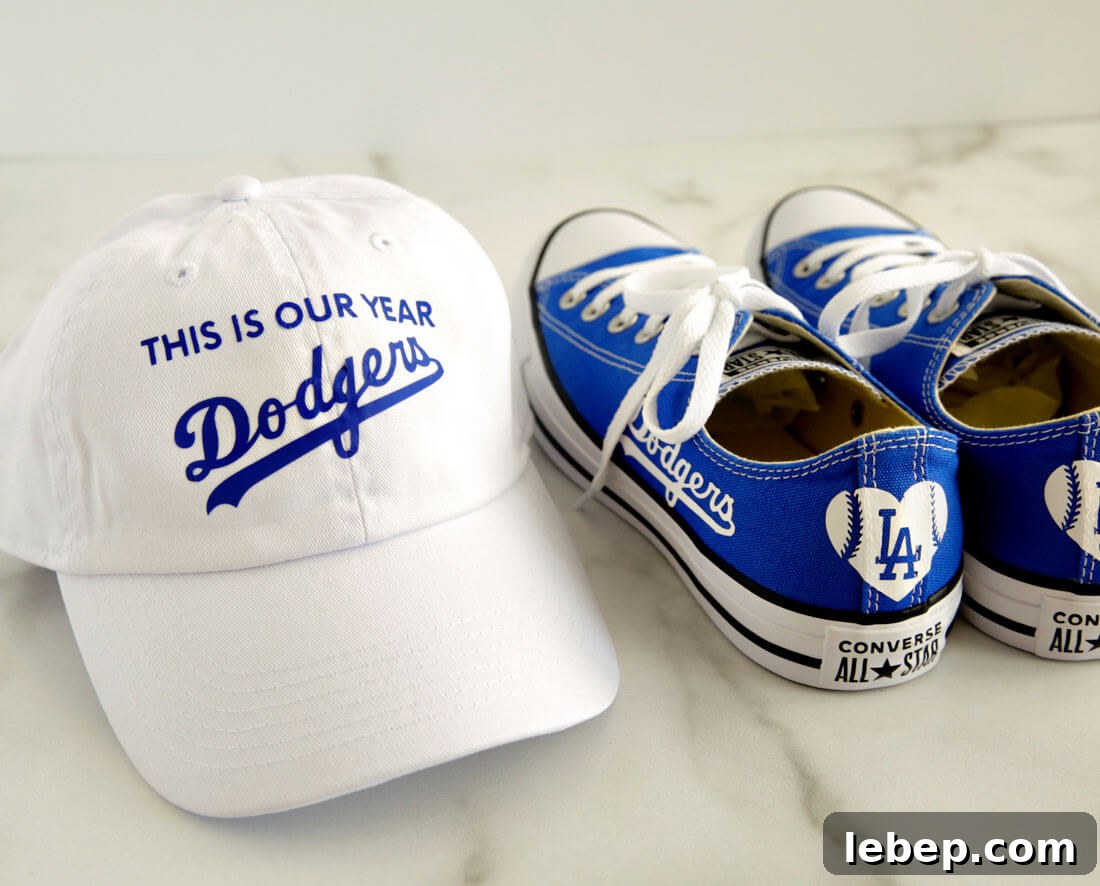
Learn how to use the Cricut EasyPress Mini to personalize shoes and a hat with iron-on vinyl.
This post was created in partnership with Cricut. All opinions are my own.
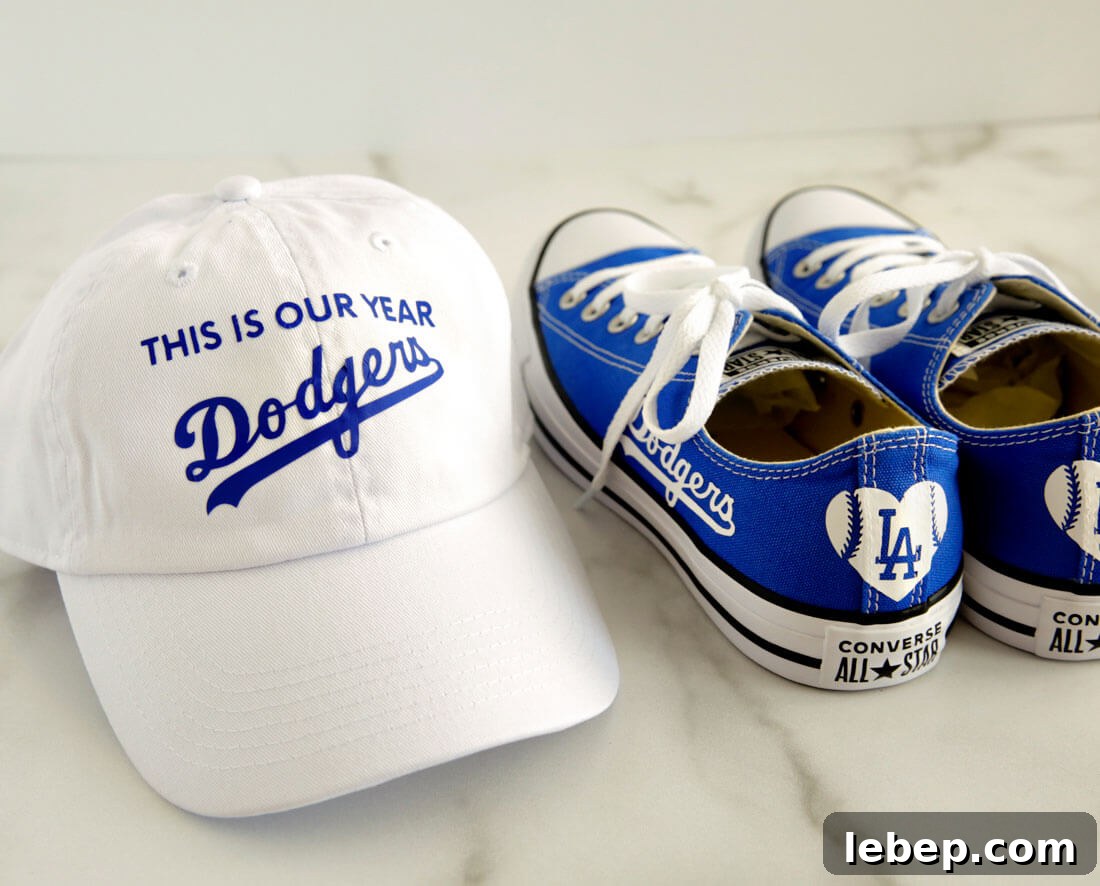
Once you start working with iron-on vinyl, projects begin to appear everywhere. When Cricut introduced the EasyPress Mini, I knew my first projects would be a hat and a pair of shoes. I wanted custom Dodger items, and the Mini made the process easy and precise. Friends at Pretty Providence created lovely floral sneakers using a similar technique.
EasyPress Mini
Before diving into the project, here’s a quick comparison of Cricut’s EasyPress lineup. Each size serves different needs:
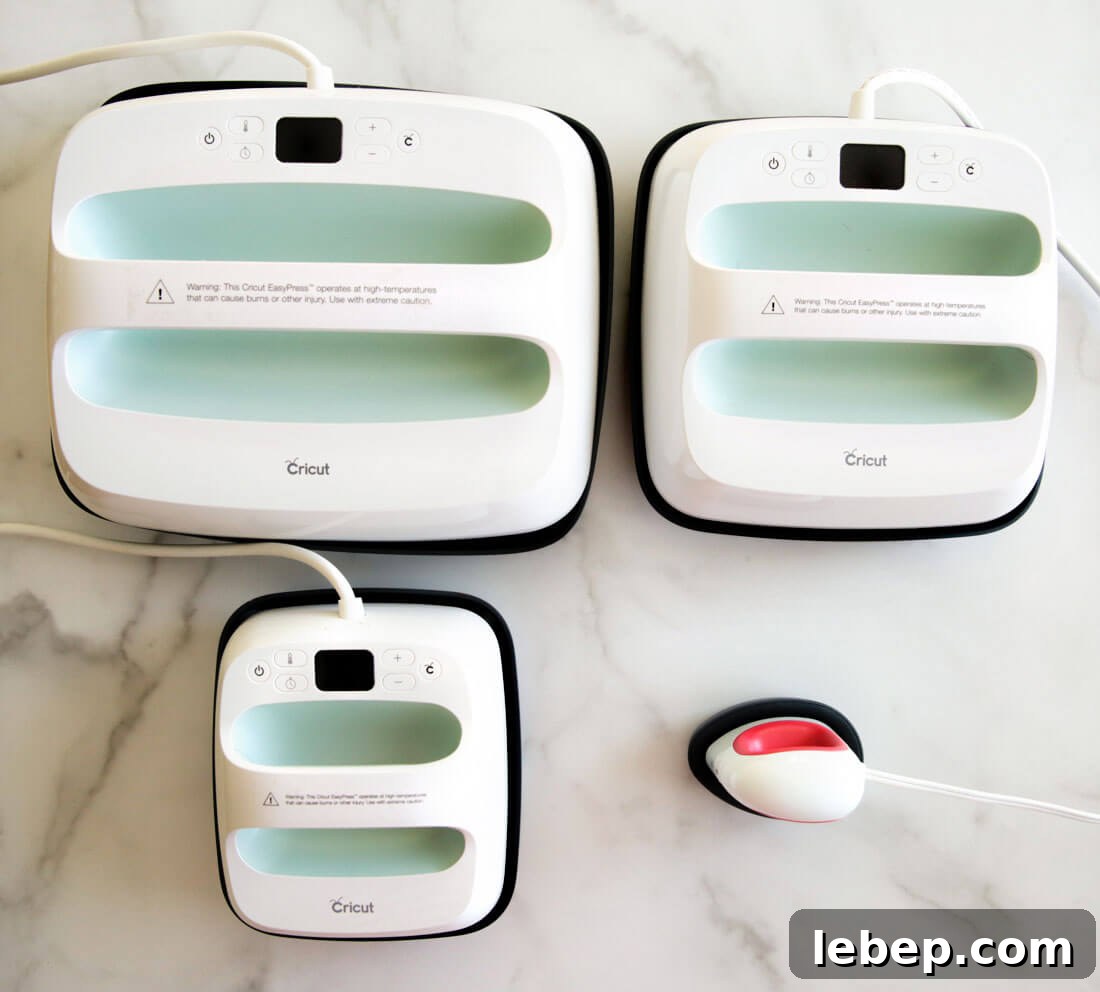
- Cricut EasyPress 2, 12″ x 10″ – the largest model, ideal for very large projects like multiple pillowcases.
- EasyPress 2, 9″ x 9″ – a versatile mid-size press suited to everyday crafting.
- EasyPress 2, 6″ x 7″ – a smaller press designed for modest-sized projects.
- EasyPress Mini – designed for tiny or hard-to-reach areas such as hats, shoes, and small pockets. Its compact size makes it perfect for detail work.
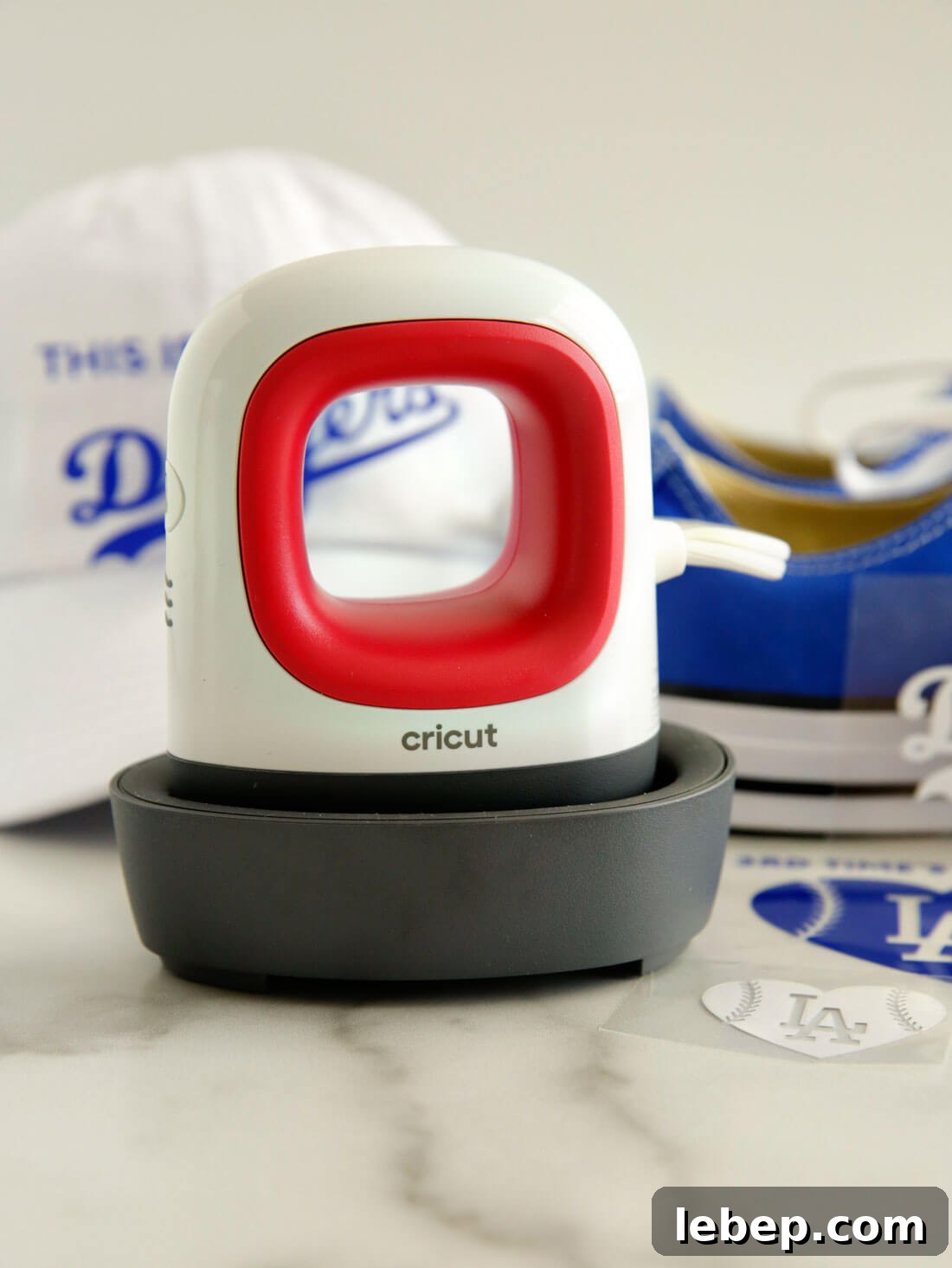
The EasyPress Mini is a great tool for small, curved, or awkward surfaces. It has three heat settings and one button, and unlike larger EasyPress models it does not include a countdown timer. Its size and shape make it easier to heat small areas accurately.
Materials Needed
- Cricut cutting machine (Explore Air 2 or Maker works well)
- Cricut EasyPress Mini
- Cricut Design Space
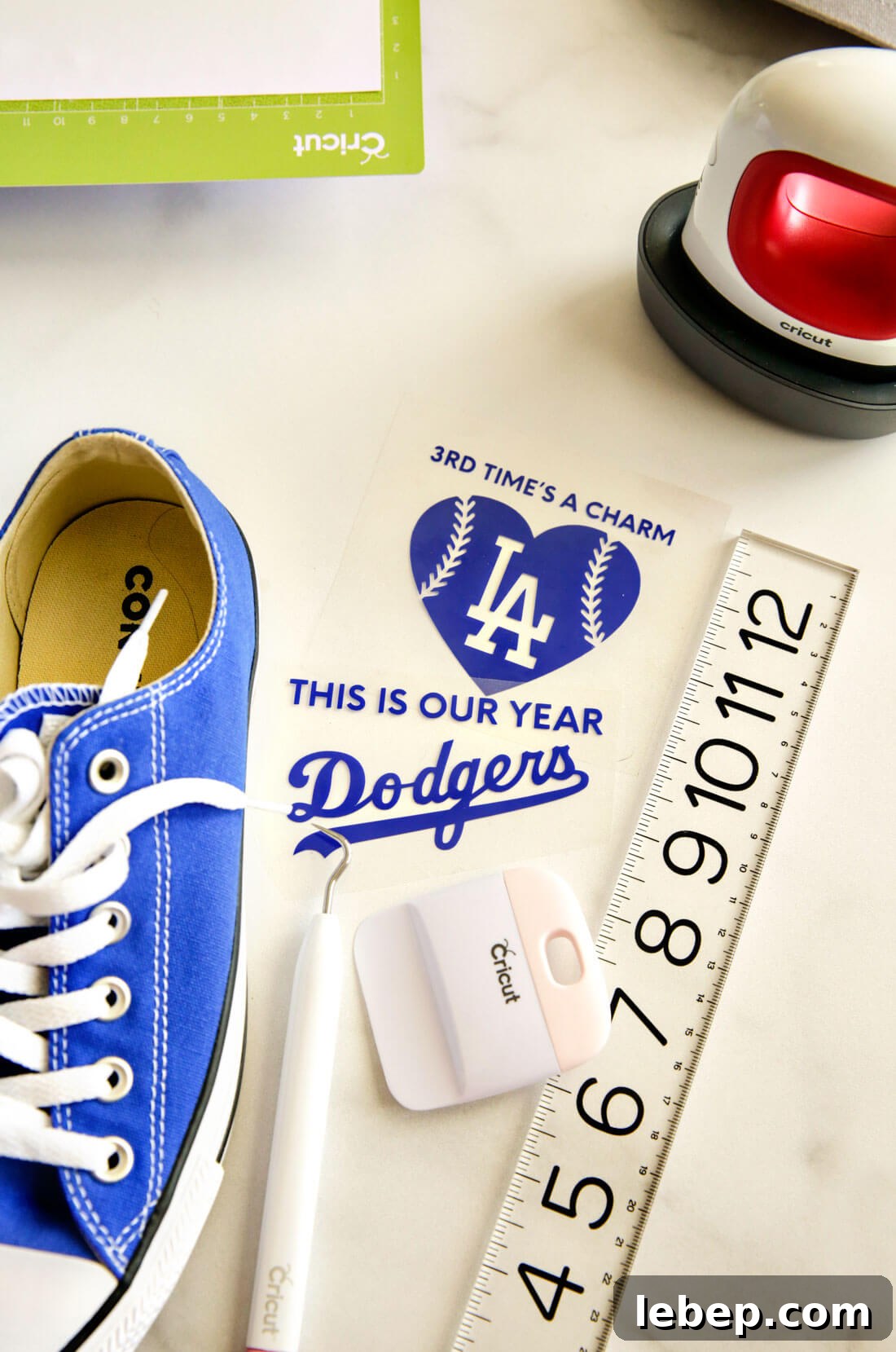
- Iron-on vinyl / heat transfer vinyl (HTV). For these projects I used royal blue and white from Everyday Iron On packs.
- Standard cutting mat
- Shoes and a hat (or any item you’d like to personalize)
I designed my graphics in Adobe Illustrator using precise measurements, exported them as SVG files, and uploaded them to Design Space. If you need help with Design Space basics, consult its tutorials.
After uploading your designs to Design Space, follow these steps:
- Click “Make It.”
- Enable the “Mirror” option for iron-on projects so designs transfer correctly.
- Place the vinyl on the cutting mat with the shiny carrier sheet facing down and follow the on-screen prompts to cut.
- Weed the excess vinyl carefully and prepare to press.
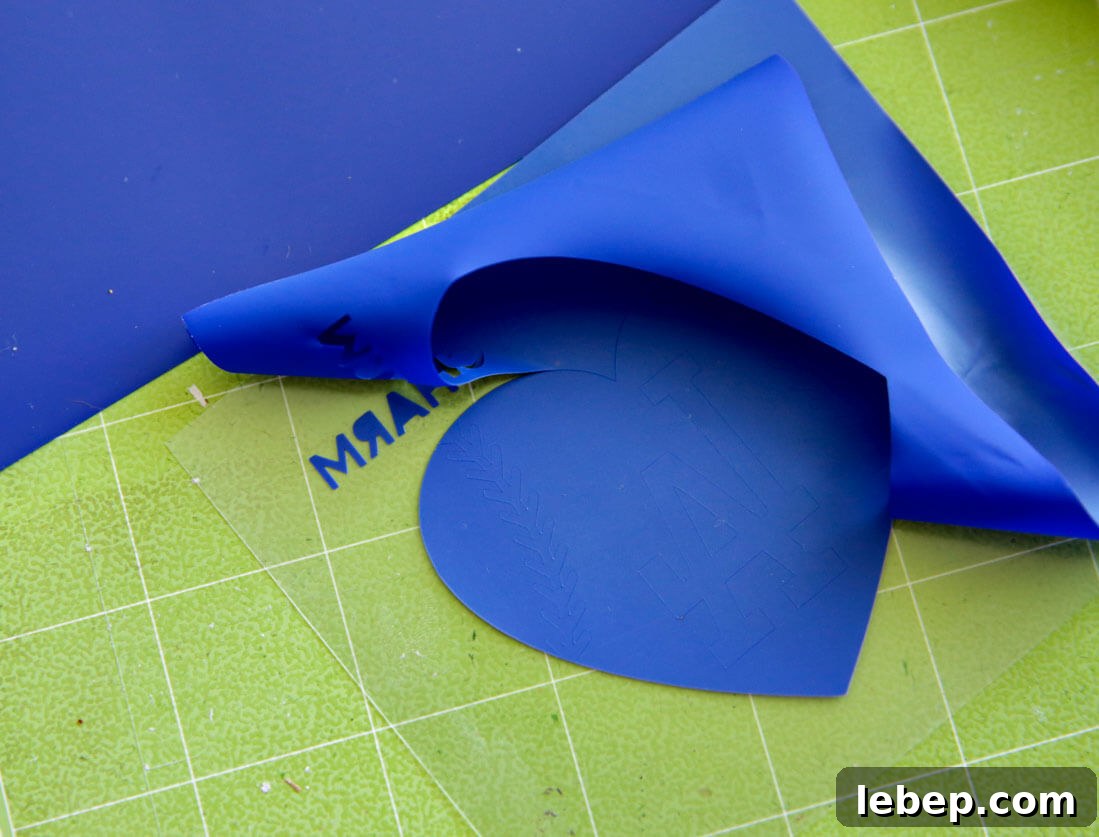
If you want step-by-step guidance on cutting and weeding labels, look for tutorials that cover making labels with a Cricut machine.
Applying Cricut Iron-On Vinyl
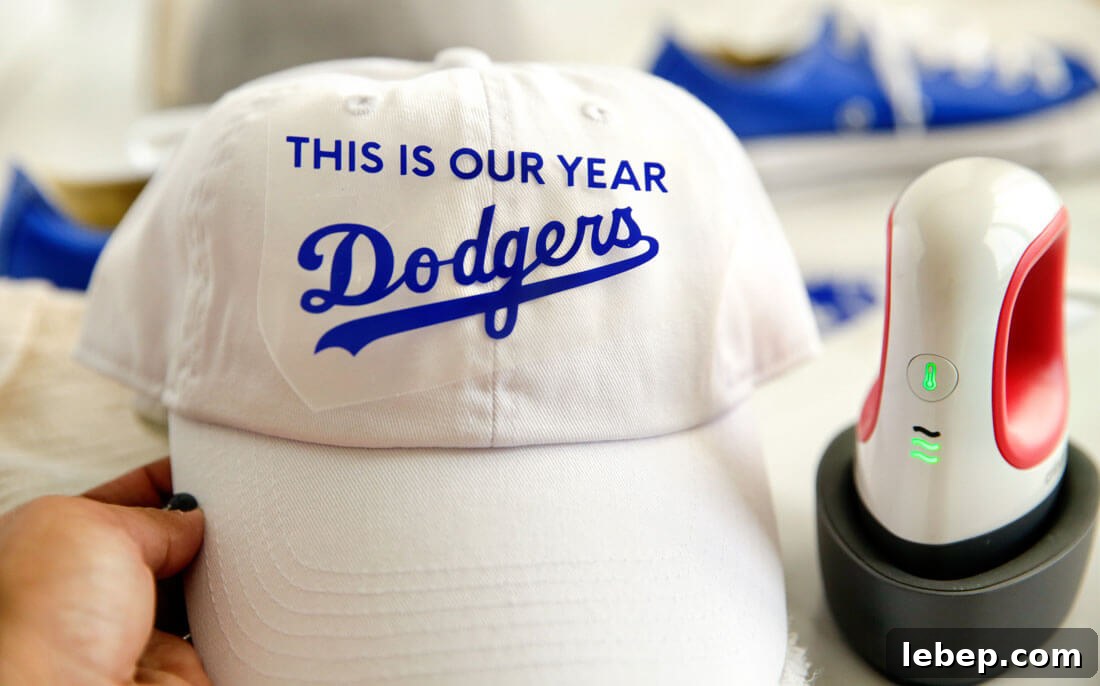
For my hat I chose the phrase “This is our year.” The final result looks great. After weeding the vinyl, use the clear carrier sheet to place the design on your item. Some materials—like canvas hats—can be challenging; the Mini’s small heating surface makes it easier to press on curved or uneven areas.
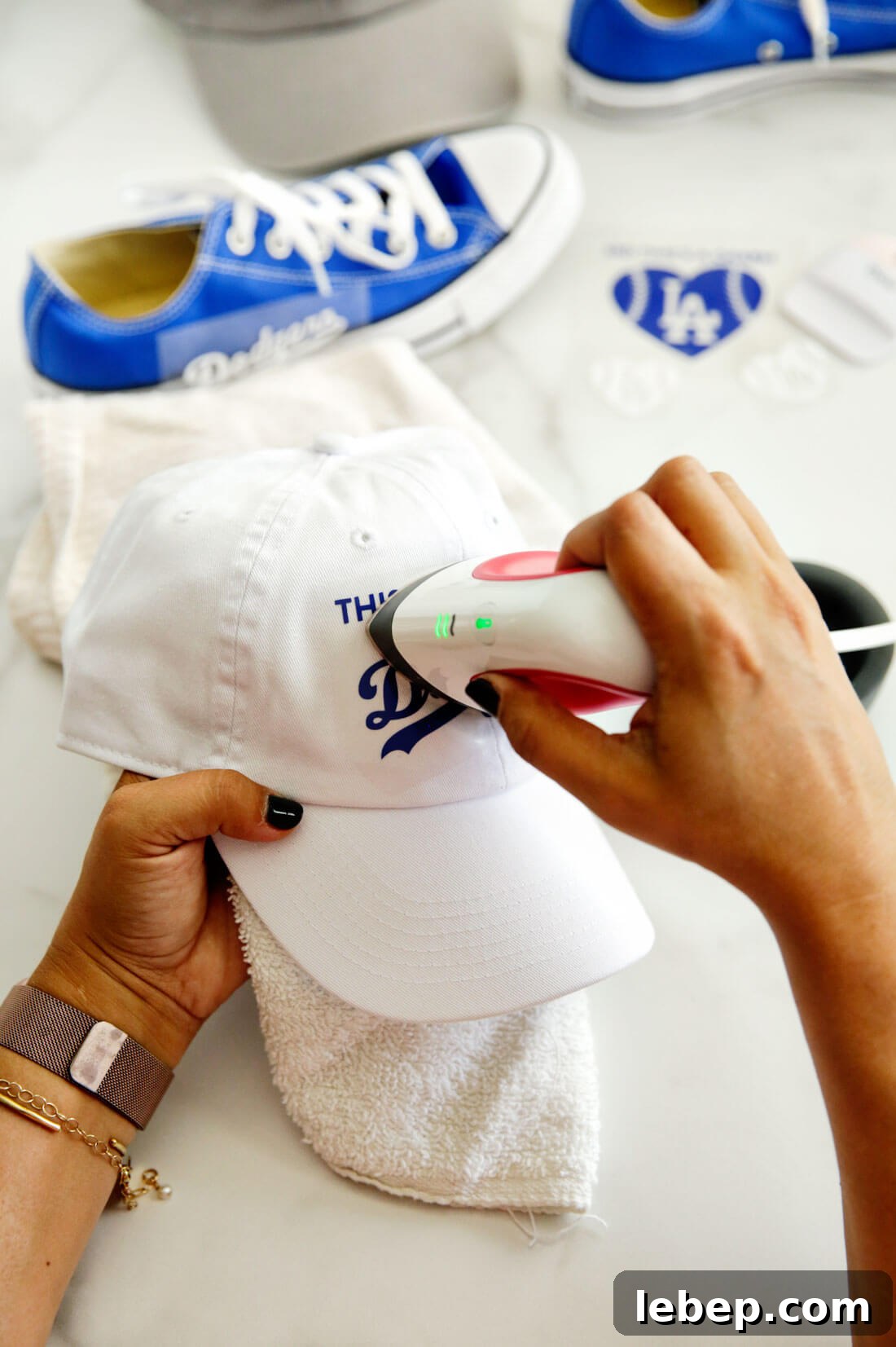
For hats, tuck a rolled towel inside to create a firm, heat-resistant surface and to avoid burns. The towel helps stabilize the hat while you press.
Hold the EasyPress Mini over the design for about 25 seconds, then perform a warm peel by removing the carrier sheet while the vinyl is still slightly warm. This helps the adhesive bond properly to the fabric.

More Cricut Projects
If you’re looking for additional Cricut inspiration and project ideas, consider these topics:
- Back to School Organization
- Cricut Maker vs. Explore Air comparison
- Printable Screen Time Tickets for Kids
- Emergency Box organizer made with a Cricut
- How to organize laundry room cabinets with vinyl labels
- Car organizer for the console